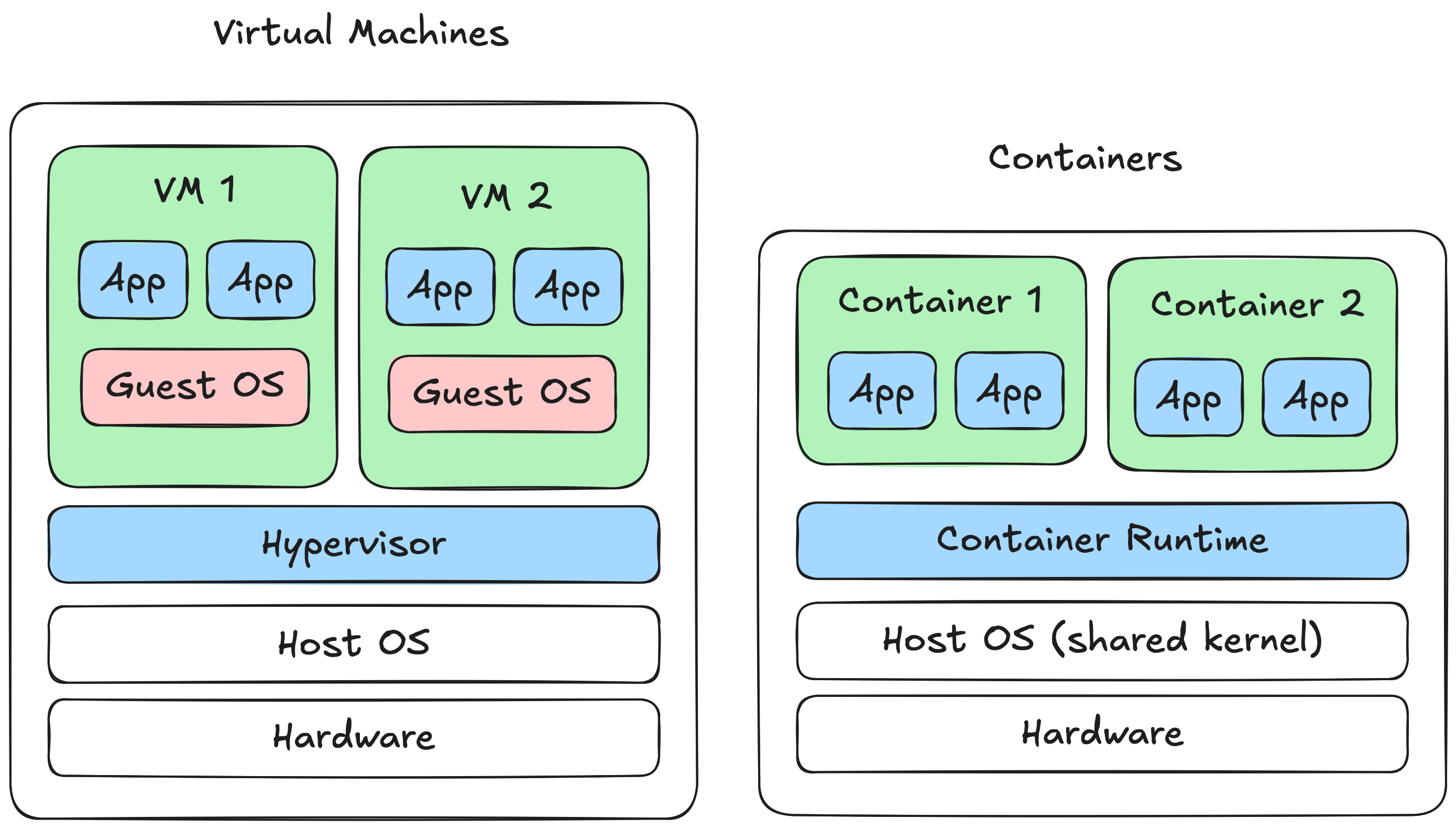
A common explanation of a container is that it is basically a lightweight virtual machine. This is a reasonable starting point, but it raises a question for me: lightweight how exactly? What has been removed from a VM, and what has been kept? What does a container actually look like from the operating system’s perspective? I am going to try to spell out a little more about how containers work under the hood.
Disclaimer: this post will not teach you how to use Docker. This is not a Docker how-to guide.
At a high level, a container will always run on the host OS whereas a VM virtualises at the hardware level.
From the operating system’s perspective, containers are just processes. In OS terms, a program is a static executable file stored on disk that contains instructions for a computer to perform tasks, and a process is a running instance of a program.
A process includes program code and data. The host OS is responsible for scheduling processes on the CPU.
Let’s look at a simple example. Let’s run an NGINX web server container with Docker:
~$ docker run -d --name web-server nginx
We can use the docker top command to get a list of the running processes for that container:
~$ sudo docker top web-server
UID                 PID                 PPID                C                   STIME               TTY                 TIME                CMD
root                200800              200776              0                   11:32               ?                   00:00:00            nginx: master process nginx -g daemon off;
message+            200841              200800              0                   11:32               ?                   00:00:00            nginx: worker process
In this case, starting the NGINX container created two processes: a master process for the web server and a worker process that can handle requests. We can also verify that these are just regular processes running on the system by using ps to list running processes:
~$ ps aux | grep nginx
root      200800  0.0  1.9  14860  8916 ?        Ss   11:32   0:00 nginx: master process nginx -g daemon off;
message+  200841  0.0  0.7  15316  3704 ?        S    11:32   0:00 nginx: worker process
Containers have three main requirements:
By default on Linux, processes are somewhat isolated. A process cannot access the memory space of any other process running on the OS. This helps prevent one process from crashing another and reduces the risk of a malicious process stealing sensitive data from its peers.
However, processes still have a broad view of the system they are running on. They can see the full filesystem, view metadata about each other, and share the same network stack.
For example, the following Python program prints all files in the current working directory and lists the PIDs of all active processes on the OS:
# /// script
# requires-python = ">=3.14"
# dependencies = [
#     "psutil>=7.2.2",
# ]
# ///

import os
import psutil

print("Current directory:")
for f in os.listdir():
    print(f"- {f}")

print("Process list:")
for p in psutil.process_iter(["pid"]):
    print(p.info["pid"])
The output of this program should look something like:
~$ uv run process.py
Current directory:
- process.py
- test.txt
Process list:
0
1
177
17
...
So plain processes fall short on all three container requirements. They share the host’s filesystem, network stack, and process tree, breaking isolation. They have no built-in limits on CPU or memory usage, breaking resource control. And they depend on whatever libraries and dependencies happen to be installed on the host, breaking portability. Let’s take a closer look at how Docker’s container implementation solves these issues.
Linux has a neat kernel feature called namespaces that partitions kernel resources. A namespace defines which resources are visible, and a process in that namespace can only see those resources. Namespaces are a solid foundation for isolation because the kernel controls which privileged operations processes can perform.
There are many different types of namespaces. Some that are especially relevant to containers are:
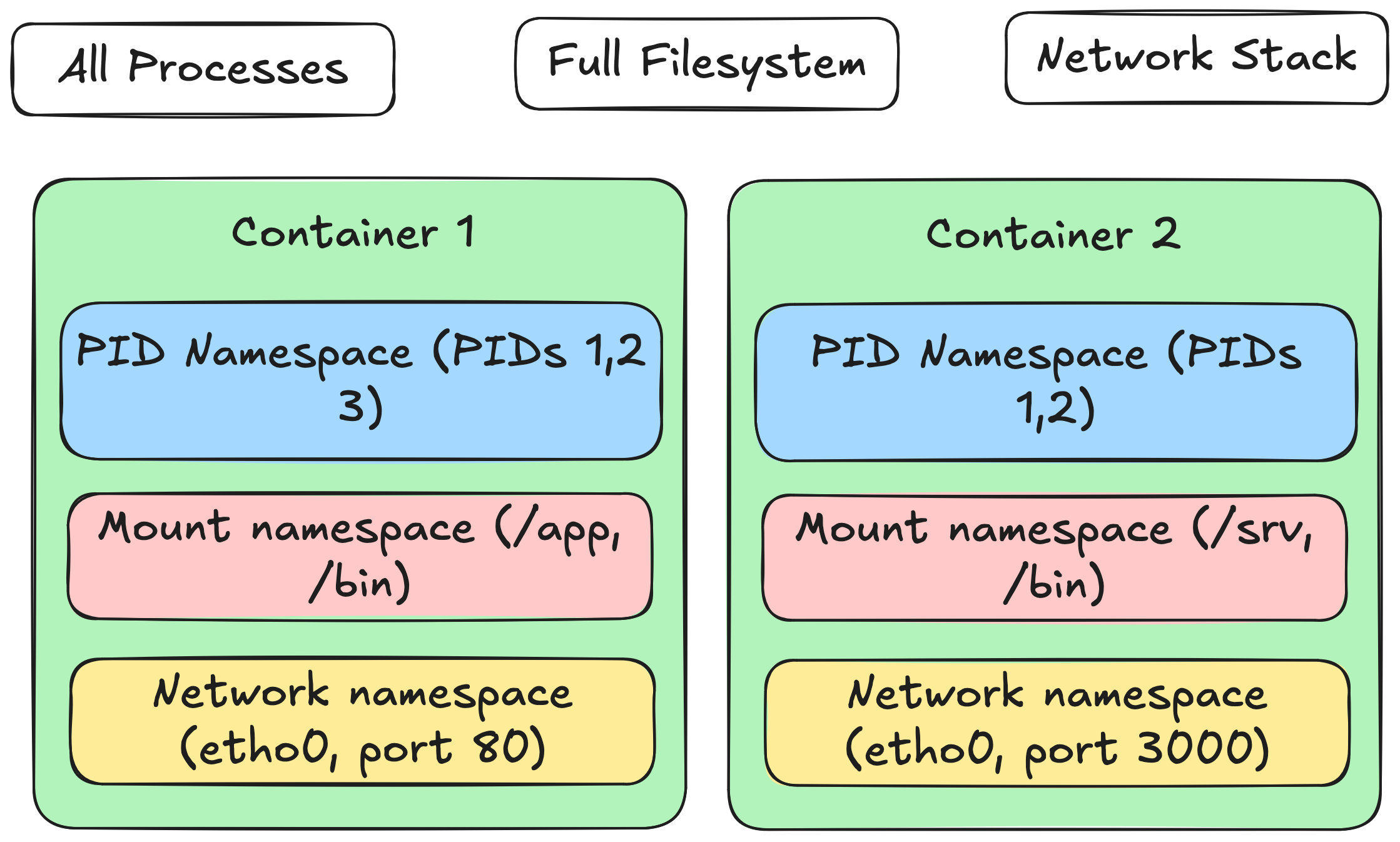
By default, a Linux system has one namespace of each type, and processes inherit their parent’s namespaces. Docker typically creates a new namespace of each type for a container so that all container processes share the same isolated view.
To show what this looks like in practice, let’s dockerise the Python process.py example from earlier:
FROM python:3.12-slim
COPY --from=ghcr.io/astral-sh/uv:latest /uv /uvx /bin/

COPY process.py /app/process.py

WORKDIR /app
CMD ["uv", "run", "process.py"]
You can build and run this with:
$ docker build --tag docker-python-process .
$ docker run docker-python-process
This will run the same process.py Python script as before, but inside a Docker container.
Current directory:
- process.py
Process list:
1
33
You will notice that the files in the filesystem are completely different from when we run the script natively. You will also see far fewer process PIDs. The container process has a different view of the filesystem and processes because it is running in constrained mount and PID namespaces.
One important component of containers is the ability to isolate the use of resources, such as CPU, memory, and disk I/O. This is useful for preventing a single container from consuming all of the resources on a machine.
To implement this functionality, Docker leans on another Linux kernel feature called cgroups. Google developed cgroups in the early 2000's for their massive internal infrastructure management system, Borg, to enable different applications to share the same hardware efficiently without interfering with each other. Cgroups provide the ability to control process resource usage by defining a group with resource constraints that apply to all processes within it. Processes can then join the group, and the kernel enforces these constraints.
When you run a docker command like:
$ docker run --memory=512m --cpus=1 -d --name web-server nginx
a container will be created with CPU and Memory cgroups configured to limit usage.
Cgroups are actually exposed as a virtual filesystem in Linux, so you can browse them like regular files:
~$ ls /sys/fs/cgroup/
cgroup.controllers      cgroup.stat             cpu.stat.local         dev-mqueue.mount  io.prio.class     memory.stat                    sys-fs-fuse-connections.mount  user.slice
cgroup.max.depth        cgroup.subtree_control  cpuset.cpus.effective  init.scope        io.stat           memory.zswap.writeback         sys-kernel-config.mount
cgroup.max.descendants  cgroup.threads          cpuset.cpus.isolated   io.cost.model     memory.numa_stat  misc.capacity                  sys-kernel-debug.mount
cgroup.pressure         cpu.pressure            cpuset.mems.effective  io.cost.qos       memory.pressure   misc.current                   sys-kernel-tracing.mount
cgroup.procs            cpu.stat                dev-hugepages.mount    io.pressure       memory.reclaim    proc-sys-fs-binfmt_misc.mount  system.slice
You can take a look a container’s cgroup with:
~$ cat /proc/$(sudo docker inspect --format '{{.State.Pid}}' web-server)/cgroup
0::/system.slice/docker-2c53af8539092141978bb91a17fe06a2093e30ad32ba4930c4ccfd3bb7591423.scope
and then use it to read specific limits set by the cgroup:
~$ cat /sys/fs/cgroup/system.slice/docker-2c53af8539092141978bb91a17fe06a2093e30ad32ba4930c4ccfd3bb7591423.scope/memory.max
536870912
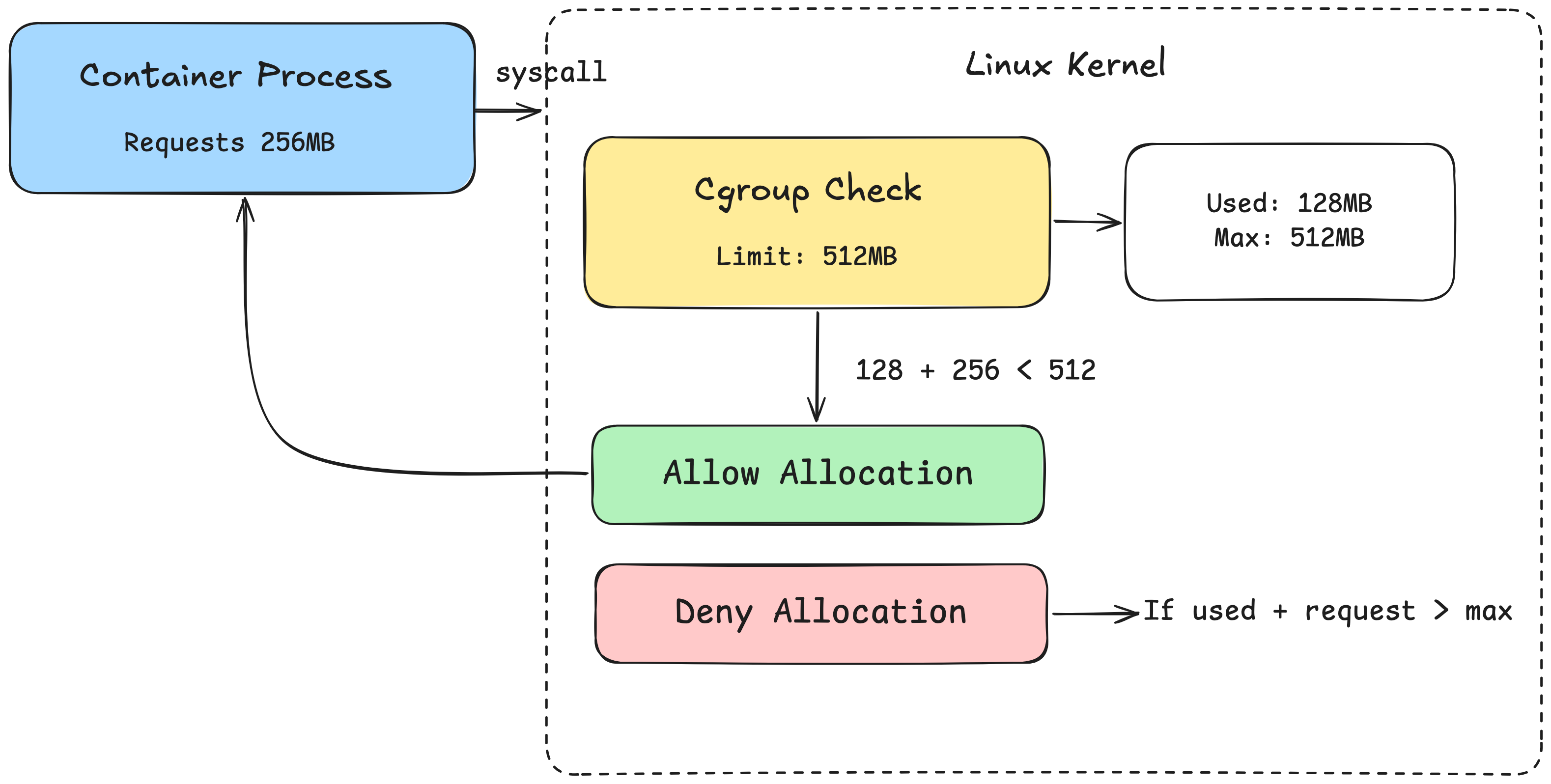
To understand a little more about how the OS limits resource usage, we need to understand how processes use resources. When a process needs a resource, take memory as an example, it sends a syscall to the OS requesting memory. The kernel memory allocator then allocates the memory and returns information about the resulting allocation back to the process. The kernel can check if a process belongs to a cgroup, and if so, whether the allocation would exceed any limits defined in that cgroup. I won't go into the details of how cgroups limit other resources, but you get the idea[1].
So if a container is simply a group of isolated processes running in an environment with their own cgroup, how is the portability requirement of containers achieved? A large part of the usefulness of containers comes from the ability to package up an entire application and all of its dependencies into a single snapshot that can be run on any machine with a container runtime installed on it.
That's where container images come in. A container image is a standard package that includes all of the files, binaries, libraries, and configuration required to run a container. When a container's mount namespace is created and pointed to a directory on disk, everything in the image is copied into that directory. The container process can then access everything in the image.
One thing that confused me when I started using Docker is that I can create an "Ubuntu" container and shell into it with a command like:
~$ docker run -it ubuntu:latest bash
root@c6cdec8d7646:/# ls
bin  boot  dev  etc  home  lib  lib64  media  mnt  opt  proc  root  run  sbin  srv  sys  tmp  usr  var
The running shell has a directory structure that looks awfully similar to Ubuntu. I can even install and use packages with apt, even if I’m not running Ubuntu as my host OS:
root@c6cdec8d7646:/# apt install curl
So what's happening here exactly? We fetched the official Ubuntu Docker image from DockerHub and spun up a container to run it. But this isn't the full Ubuntu OS, it's just the root directory (/) of the OS, containing the filesystem, libraries, and tools that Ubuntu ships with.
This bundles in the bash program that allows us to shell into the container like we would on any OS, and the apt program that lets us install any executable from the apt repository. However, every executable in the Ubuntu image is run on the host OS, not on a Ubuntu kernel.
So even though a running container from the Ubuntu image feels a lot like Ubuntu, it's not quite. The reason this is useful is that we can bundle absolutely every possible dependency we may need into the container. If the application needs to use some OS utilities, we can bundle those into the container as well.
But it’s quite rare that we wish to containerise just the Ubuntu user space. Typically, we’ll want to add files, configuration, and binaries needed to actually run our application too. Docker allows us to define changes to an image using a Dockerfile :
FROM python:3.12-slim
COPY --from=ghcr.io/astral-sh/uv:latest /uv /uvx /bin/

COPY process.py /app/process.py

WORKDIR /app
CMD ["uv", "run", "process.py"]
The FROM command allows us to start from a base image that already includes a set of files and utilities we might need. Every line in a Dockerfile is called a layer. Each layer can essentially be thought of as a set of file system changes that add, remove, or modify files in the image. Once a a Dockerfile is defined, an image has to be built from it. This is simply the process of reading and executing each layer and saving the resulting snapshot.
One very nice thing about this layered approach is that, because layers build on top of each other sequentially, they can be cached. If you make a change to a Dockerfile, you only need to rebuild from the changed line onwards, since the state of the image is unchanged up to that point.
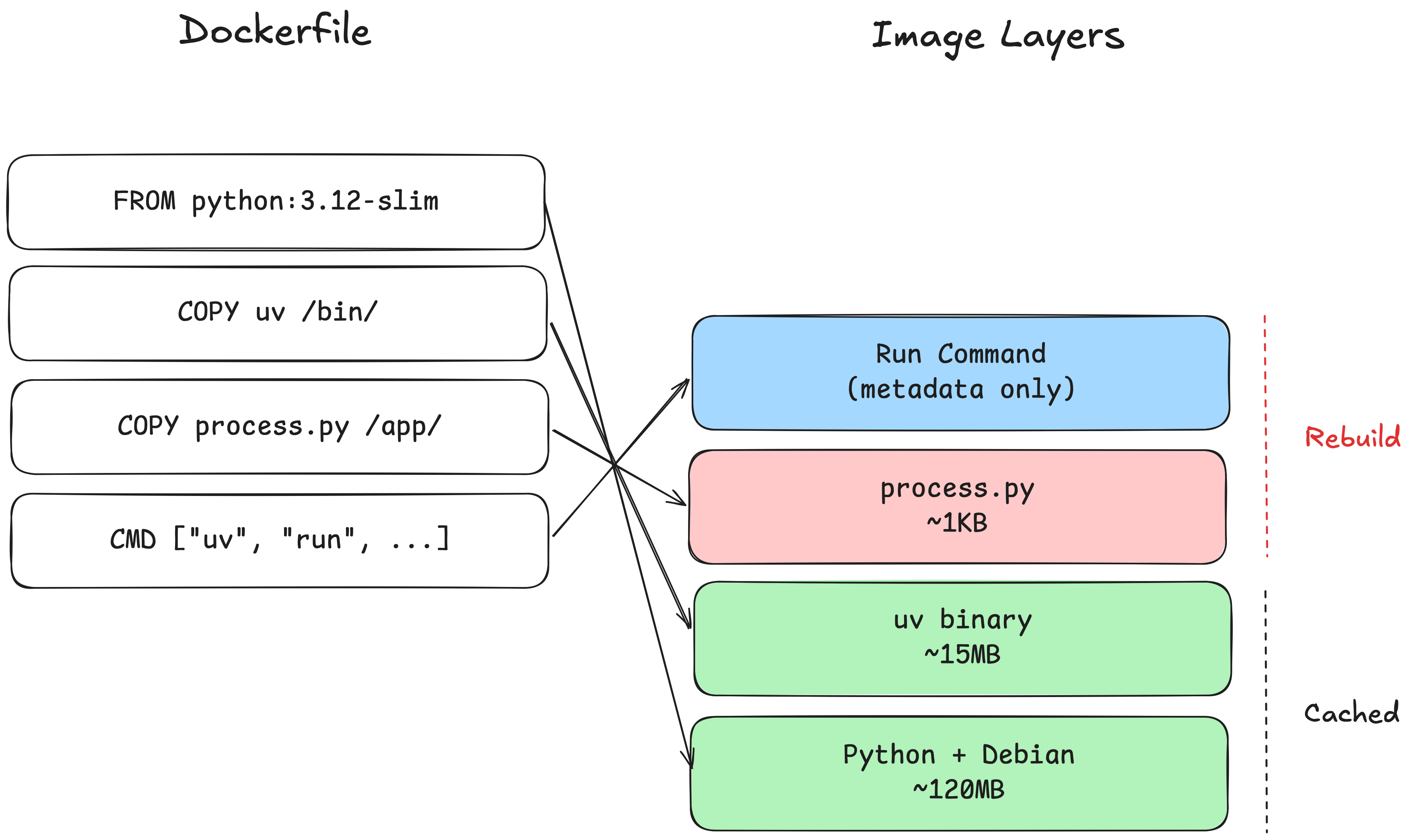
If a change is made to the process.py file, only the layers from the COPY command and onwards must be rebuilt.
At this point we know that containers are just processes, isolated and resource-controlled thanks to a few Linux OS features, and that we can bundle an image and copy it into the root directory of a process.
We can now put all of this together to build our very own basic container runtime. I have built one in ~300 lines of Python that you can clone the repo and try it for yourself here:
https://github.com/mcandru/pycrate
I built it in Python for educational purposes, as Python is more widely readable than C. The implementation is full of security holes, but I think it's still useful to see the vibe of something that resembles a container runtime.
You can run a “container” by running:
~$ sudo ./pycrate.py run ubuntu.tar.gz /bin/bash
and you will get a Ubuntu-like shell experience running in a pseudo-containerised process.
At its core, the way it works is relatively straightforward:
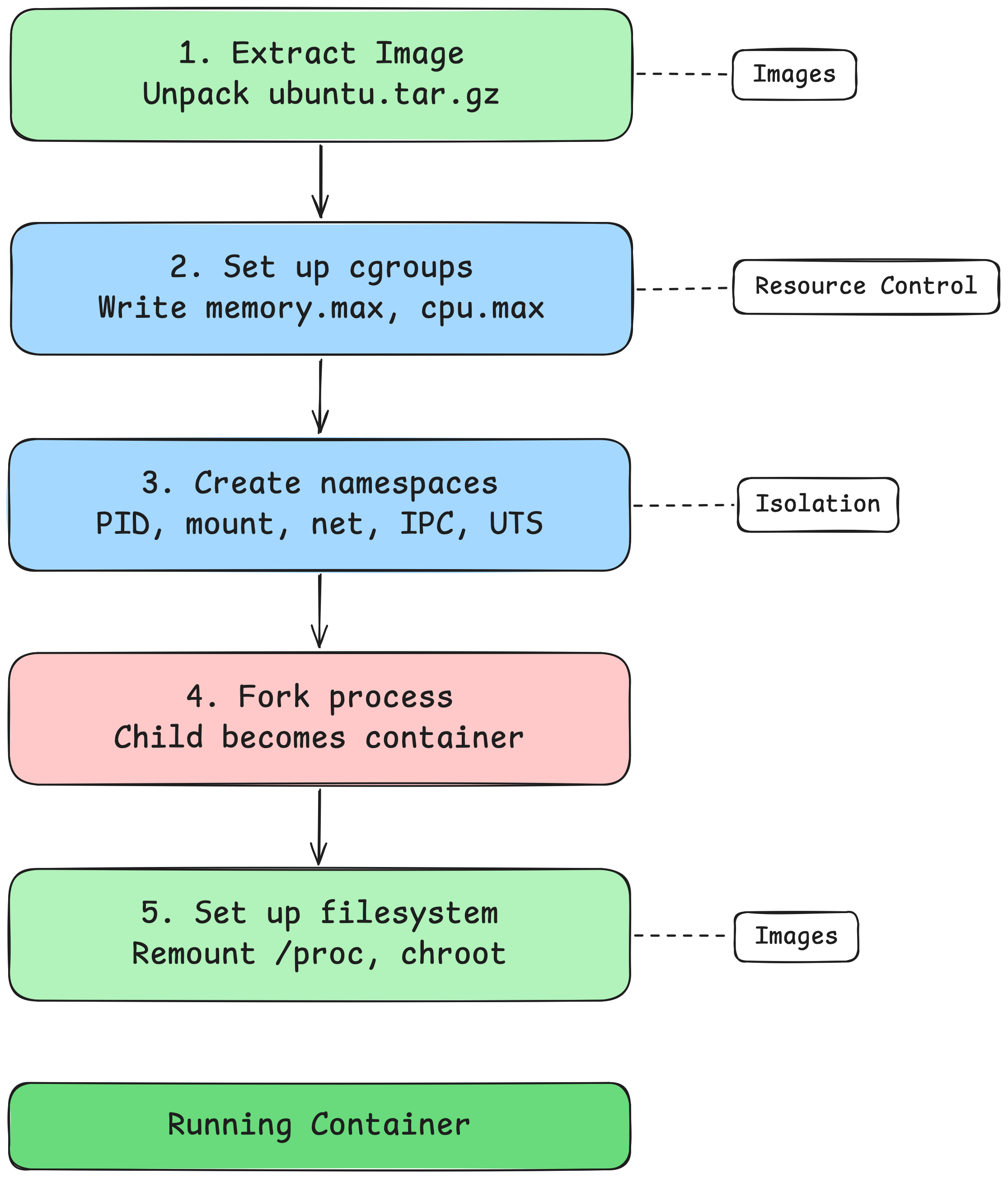
1. Extract the Image
For example, if you specify ubuntu.tar.gz, we uncompress it and copy it to a temporary directory that we'll use as the root directory for the container.
2. Set up Cgroups
You can specify --memory and --cpu arguments to the command. If you do, a new directory is created in /sys/fs/cgroup to create a new cgroup for the process.
Why does simply creating a new empty directory create a new cgroup? This is a virtual filesystem that is backed by the kernel. The kernel will intercept the mkdir and automatically populate it with the control interface files needed for a cgroup. This allows us to then modify the memory.max and cpu.max files as needed to specify the resource limits.
3. Create Namespaces
A new PID, mount, hostname, network, and IPC namespace must be created to isolate the process. This will apply to the current process and any child processes that it creates.
4. Fork the Process
After creating the namespaces, the parent process must be forked to create the container process. Forking is a bit funky when you first encounter it. It essentially creates an exact copy of a process from the current point of execution. The forked child is now the container.
5. Set up the Filesystem
Once the process is forked, the filesystem must be set up. By default, the forked process can still see the old /proc directory containing the file descriptors for all OS processes, but it shouldn’t be able to access them. /proc must be remounted so that it only shows the PIDs visible to the child process.
The root directory for the process must also be changed. In my implementation, I use the chroot syscall, mostly because there already exists a Python os module wrapper for it. This changes the root directory to that of the temporary directory that we created that contains the extracted system image.
Note that chroot has a pretty gnarly escape where you can get access to the real root folder of the system simply by calling chroot again to another relative path and break out. There are other ways to change the mount tree’s root directory itself, but I chose not to use them for this example to keep the code as understandable as possible.
And there we have it, a poor mans container runtime, complete with no network access, incomplete isolation, and at least one major security vulnerability. The concepts are simple, but the implementation is not so much. However, it was still a fun educational exercise, especially as someone who is not familiar with low-level kernel interfaces.
Containers aren't magic, although using them can make it feel like they are. They're processes with a few clever tricks added on: namespaces to limit what the process can see, cgroups to limit what it can consume, and images to bundle everything it needs into a portable snapshot.
I hope this post demystifies the black box a little. The next time you run docker run, you'll know that somewhere under the hood, the kernel is creating some isolated processes, giving it a restricted view of its world, and pointing it at a directory full of files.
[1] You may at this point be thinking, if Docker containers rely on namespaces and cgroups in Linux to isolate processes, how do they work on macOS or Windows? Well the short answer is that they don’t. When you run Docker on Mac or Windows it actually runs in a lightweight, purpose-built Linux VM. In theory any performance hit from running containers in the VM should be minimal, but in practice it is relatively well accepted that running Docker on Linux has meaningful performance benefits.